
HubSpot Lead Routing: How It Works and How to Set It Up
HubSpot lead routing explained: round robin, territory and score-based builds, plan limits, an n8n fallback and a test checklist you can copy today.

Key takeaways
- HubSpot routes leads with workflows. The Rotate record to owner action needs Sales Hub or Service Hub Professional or Enterprise.
- Round robin, territory and score-based routing are three different builds. Most teams end up combining all three in one workflow.
- Native HubSpot lead routing has gaps: no per-rep caps for contacts, a one-record-at-a-time queue, and no weighting by rep quota.
- Test with fake records before you go live, then watch speed to lead every week.
HubSpot lead routing is the automatic assignment of each new lead to the right salesperson. In HubSpot you build it with a workflow that sets the owner property, using the Rotate record to owner action for round robin. As of November 2026 that action needs a Professional or Enterprise Sales Hub or Service Hub subscription.
What HubSpot lead routing does
HubSpot lead routing answers one question: who owns this lead right now? HubSpot stores the answer in an owner property. Every HubSpot lead routing rule you build is a way of filling that property fast and correctly.
The speed matters because a lead with no owner gets no follow-up. Nobody sees it in their task queue, and no sequence fires on it. In the accounts we review, the usual failure is not a clever rule that misfires. It is a form that creates contacts with a blank owner, and nobody notices for a week.
Which object do you route?
You have three common choices, and you should pick one on purpose.
- Contact. The default for most B2B teams. The contact owner drives tasks, sequences and notifications.
- Company. Best for account-based teams where one rep should own every person at a firm. Route the company, then copy the owner to its contacts.
- Lead object. HubSpot has a separate lead record in Sales Hub. HubSpot’s documentation labels lead assignment in workflows as beta and says it needs Sales Hub Professional or Enterprise (checked 5 Nov 2026). Treat beta features as something to test, not something to bet your pipeline on.
If you are unsure, route the contact. It is the simplest setup and the easiest to debug.
SOUND FAMILIAR?Leads slipping through? We set up routing and follow-up that runs on its own.See CRM & Automation →What you need before you build HubSpot lead routing
You need the right plan, paid seats for every rep in the pool, and a clean list of owners. Skipping any of these is the main reason a first HubSpot lead routing build fails.
| Requirement | What HubSpot’s documentation says | Why it matters |
|---|---|---|
| Subscription | Sales Hub or Service Hub, Professional or Enterprise, for the Rotate record to owner action | Starter lets you build only restricted workflows, so plan for Professional |
| Seats | Assignees need paid Sales or Service seats. Core or view-only seats appear greyed out | A rep on the wrong seat type never receives a lead |
| Teams | A team needs at least one paid-seat user to be eligible | Empty or unpaid teams silently produce no owner |
| Deactivated users | Excluded from rotation | Remove leavers fast and re-check the pool |
Source for the table: HubSpot’s assign and rotate record owners using workflows guide.
What it costs to get started
HubSpot’s Sales Hub pricing page lists Professional at $90 and $100 per seat per month, with a one-time $1,500 onboarding fee. The page does not label which price belongs to annual billing, so confirm it on the HubSpot Sales Hub pricing page before you budget. It lists Professional with up to 300 workflows and Starter with up to 50 workflows and restricted triggers and actions.
Illustrative example: a team of 8 reps on Professional at $90 per seat is 8 x $90 = $720 per month, plus the $1,500 onboarding fee once. That is a modest cost next to one lost deal, which is why we rarely argue against paying for the plan if HubSpot lead routing is the main problem.
If your contact owner data is already messy, fix that first. Our CRM data cleanup checklist covers the owner and territory fields that HubSpot lead routing depends on.
Build 1: HubSpot round robin lead routing
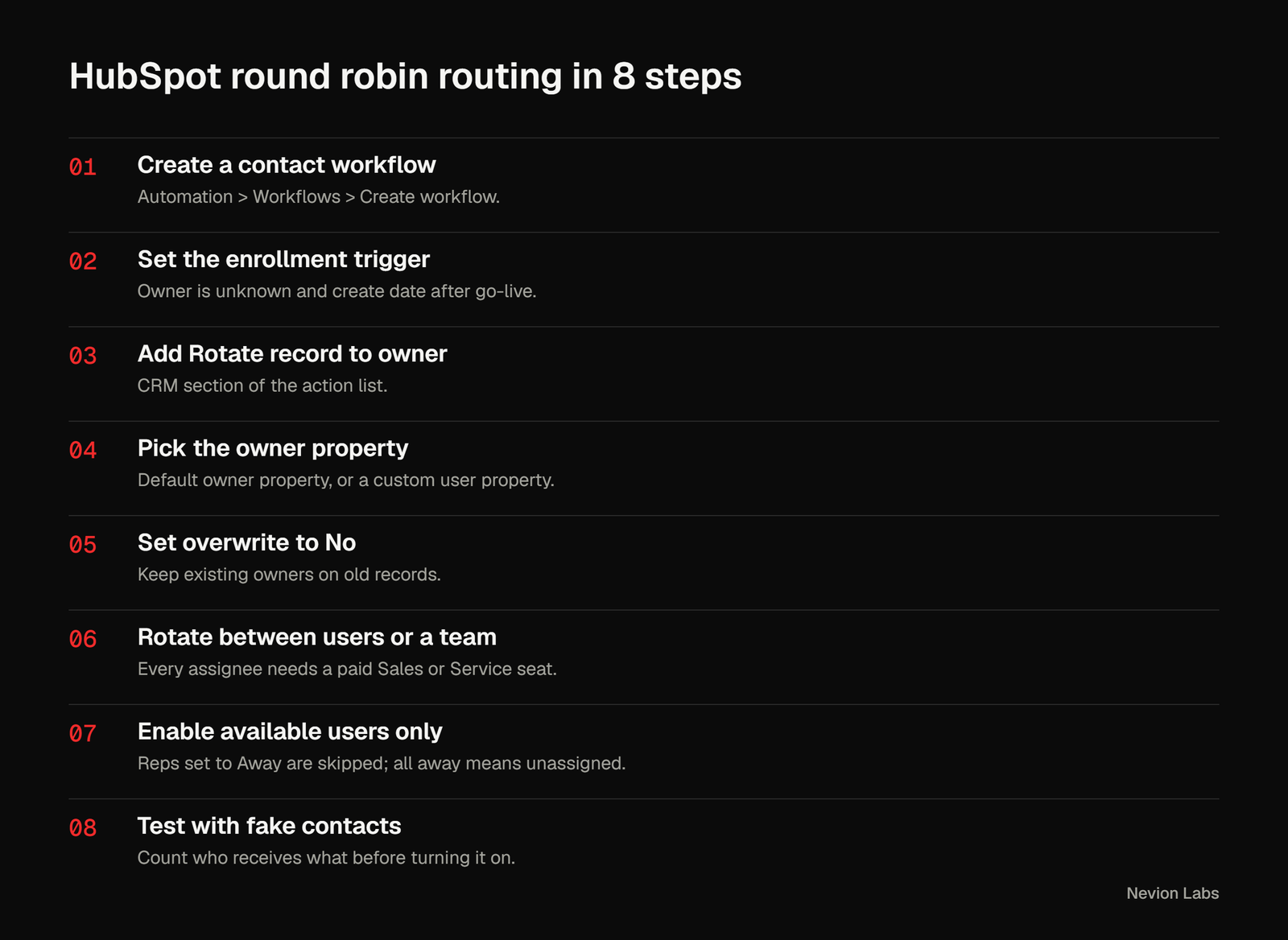
Round robin hands each new lead to the next rep in a list. In HubSpot you build it as a workflow with an enrollment trigger and a Rotate record to owner action. Here is the sequence we use as a starting point, based on HubSpot’s own setup steps.
- Go to Automation, then Workflows, and create a contact-based workflow.
- Set the enrollment trigger. A common choice is “Contact owner is unknown” plus “Create date is after the go-live date.” That keeps old records out.
- Add the action Rotate record to owner under the CRM section.
- Choose the owner property. It defaults to the object’s owner property, but you can pick a custom user property.
- Decide whether to overwrite existing owners. For new-HubSpot lead routing, say no.
- Choose to rotate between specific users or a team.
- Turn on “Assign to available users only” so reps set to Away are skipped.
- Save, then test with two or three fake contacts before you turn the workflow on.
How the Away setting behaves
HubSpot’s guide says the availability setting skips users set to Away. If everyone in the pool is away, the owner is set to unassigned. So you need a second workflow or a view that catches unassigned leads, and a person responsible for checking it.
What “even” really means
Here is a point the documentation leaves open. HubSpot lists load balanced, round robin and random as distribution options for leads and tickets. For other record types, the guide describes rotating between users or a team without naming a distribution mode. We would test this in your own account with 10 fake contacts and count who receives what, rather than assume strict alternation.
Illustrative example: 120 new contacts a month and 4 reps should land at roughly 30 each. If one rep ends up with 48 after a month, you have either a filter problem or a rep who was out of the pool at times. Count before you complain.
Build 2: territory routing by country or company size
Territory routing sends a lead to a rep or team based on a property value, such as country, state, industry or employee count. In a workflow this is an if/then branch placed before the owner action. Each branch holds its own Rotate record to owner step, pointed at that territory’s team.
A simple structure for a B2B team selling in the US and India:
- Branch 1: country is India. Rotate between the India team.
- Branch 2: country is United States or Canada. Rotate between the North America team.
- Branch 3: employee count is 500 or more. Rotate between the enterprise team, and place this branch first so size beats geography.
- Default branch: country is blank or unmatched. Assign to a named triage owner, never to nobody.
Order matters because HubSpot checks branches in sequence. Put your most specific rule at the top. If your enterprise rule sits below the country rules, a large Indian company will go to the India team, which may not be what you want.
Fix the inputs first
Territory rules break when the data is free text. “USA”, “United States” and “U.S.” are three values to a workflow. Use a dropdown on forms, or add a normalising step that writes a clean country value before HubSpot lead routing runs. A short delay or a second workflow that sets the clean value is easier to maintain than a branch with twelve spellings.
The same logic works for form-based routing. Route demo requests to the sales team and support requests to the service team by branching on the form name or a hidden field. If you are choosing between CRMs and territory handling matters to you, our Zoho CRM vs HubSpot comparison covers how each handles assignment.
Build 3: score-based HubSpot lead routing
Score-based routing sends only qualified leads to sales and keeps the rest in nurture. HubSpot stores lead scores in regular properties, so a workflow can use “score is greater than 60” or a threshold label as its enrollment trigger. HubSpot’s lead scoring guide says exactly this about using scores in workflows.
A practical pattern has two lanes:
- Hot lane. Score above your threshold. Rotate to a rep immediately and create a task due in one hour.
- Warm lane. Score below the threshold. Leave unassigned, enrol in a nurture workflow, and re-check when the score changes.
The re-check matters. Without it, a lead that crosses the line next week never reaches a rep. Set re-enrolment on, or build a second trigger on the score property itself. HubSpot’s workflow guide notes that records enrol only the first time they meet the triggers unless you switch re-enrolment on.
The quality of this HubSpot lead routing is only as good as the score. We cover how to build one that sales will believe in our guide to HubSpot lead scoring.
Want HubSpot lead routing built and tested for you? We design and build HubSpot workflows, owner rules and monitoring for B2B teams. See our CRM and marketing automation service or send us your current rules and we will tell you where they leak.
Native limits of HubSpot lead routing
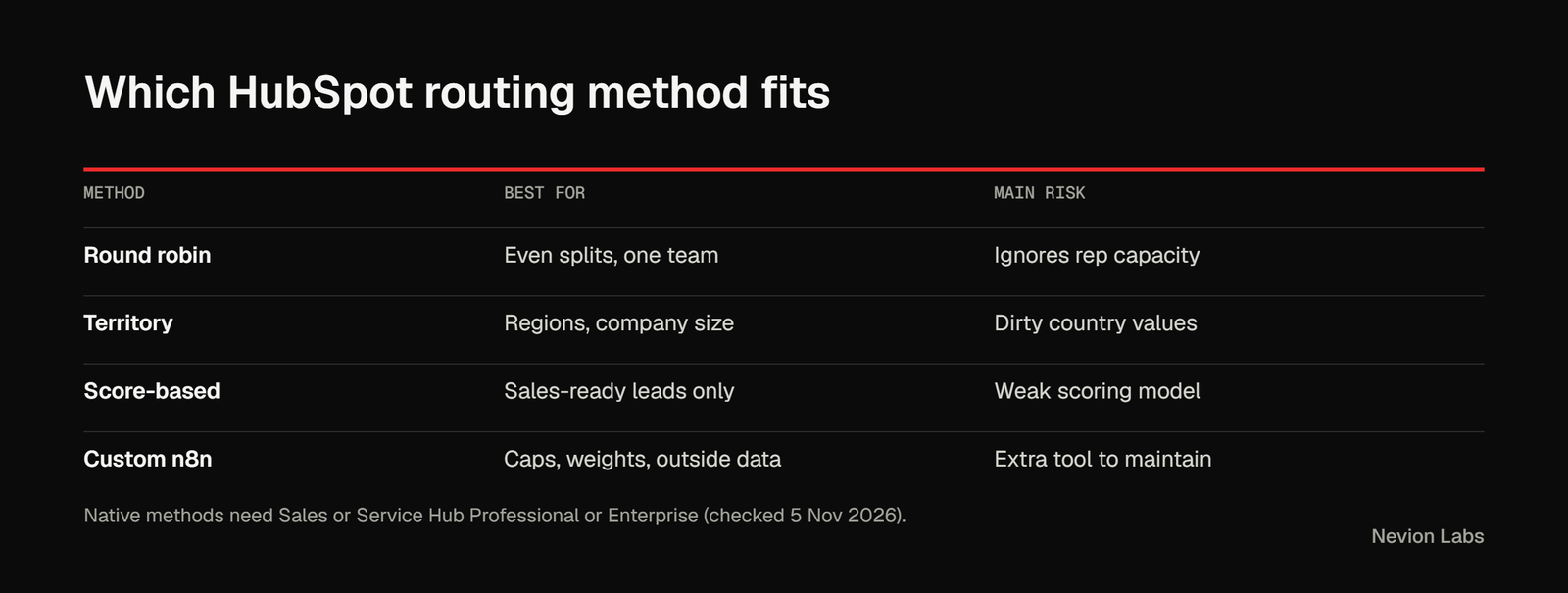
Native HubSpot lead routing works well for even splits and simple rules. It struggles with weighting, caps and shared queues. These are the limits we run into, drawn from HubSpot’s documentation and our own build experience.
| Limit | Source | What to do |
|---|---|---|
| One object rotates at a time, so other records wait and retry, which can slow the workflow | HubSpot documentation | Avoid pointing many high-volume workflows at the same rotation |
| No eligible user means no owner is assigned | HubSpot documentation | Add a triage owner and an unassigned-leads view |
| Adding or removing owners resets assignment counts | HubSpot documentation | Expect a lopsided week after team changes |
| Salesforce owner sync can conflict with HubSpot ownership changes | HubSpot documentation | Decide which system is the owner source of truth |
| Weighted splits (for example 2:1 by quota) | Not documented as a native option | Repeat a rep in a pool only if your account allows it, or use a custom build |
| Per-rep daily caps for contacts | Not documented in the guide | Custom build, see below |
The last two rows are our reading of the guide, not a statement that HubSpot can never do them. Features change. Check the current HubSpot routing documentation before you commit to a custom build.
The n8n fallback for rules workflows cannot handle
When you need weights, caps or outside data, a small n8n workflow can pick the owner and write it back to HubSpot. We build on n8n and Make, so we are not neutral here, and we would still use native HubSpot lead routing whenever it fits.
Good reasons to go custom:
- You want a rep’s open lead count to decide who is next.
- You need to check a calendar, a holiday list or a Google Sheet of territories.
- HubSpot lead routing depends on data HubSpot does not hold, such as a billing system or an enrichment lookup.
The shape of the build is simple. n8n’s HubSpot node supports contact operations including get recently created or updated, search and update, according to the n8n HubSpot node documentation. That gives you a polling route: fetch new contacts every few minutes, apply your rule in a code or function step, and update the owner.
- Poll for contacts created in the last few minutes with no owner.
- Look up each rep’s current open lead count.
- Choose the rep with the lowest count who is marked available.
- Update the contact owner and log the decision in a sheet.
- Alert a channel if no rep is available.
The log in step 4 is the part people skip, and it is the part that saves you when a rep asks why they got nothing. Polling adds a delay of a few minutes, so keep native HubSpot lead routing for the first touch if speed is critical. For more on picking an automation tool, see our n8n vs Zapier vs Make comparison, and for self-hosted builds, our n8n workflow automation guide.
What we did not test: we have not benchmarked HubSpot’s rotation action against a custom build at high volume, so we make no claim about relative speed beyond the polling delay above.
Testing and monitoring your HubSpot lead routing
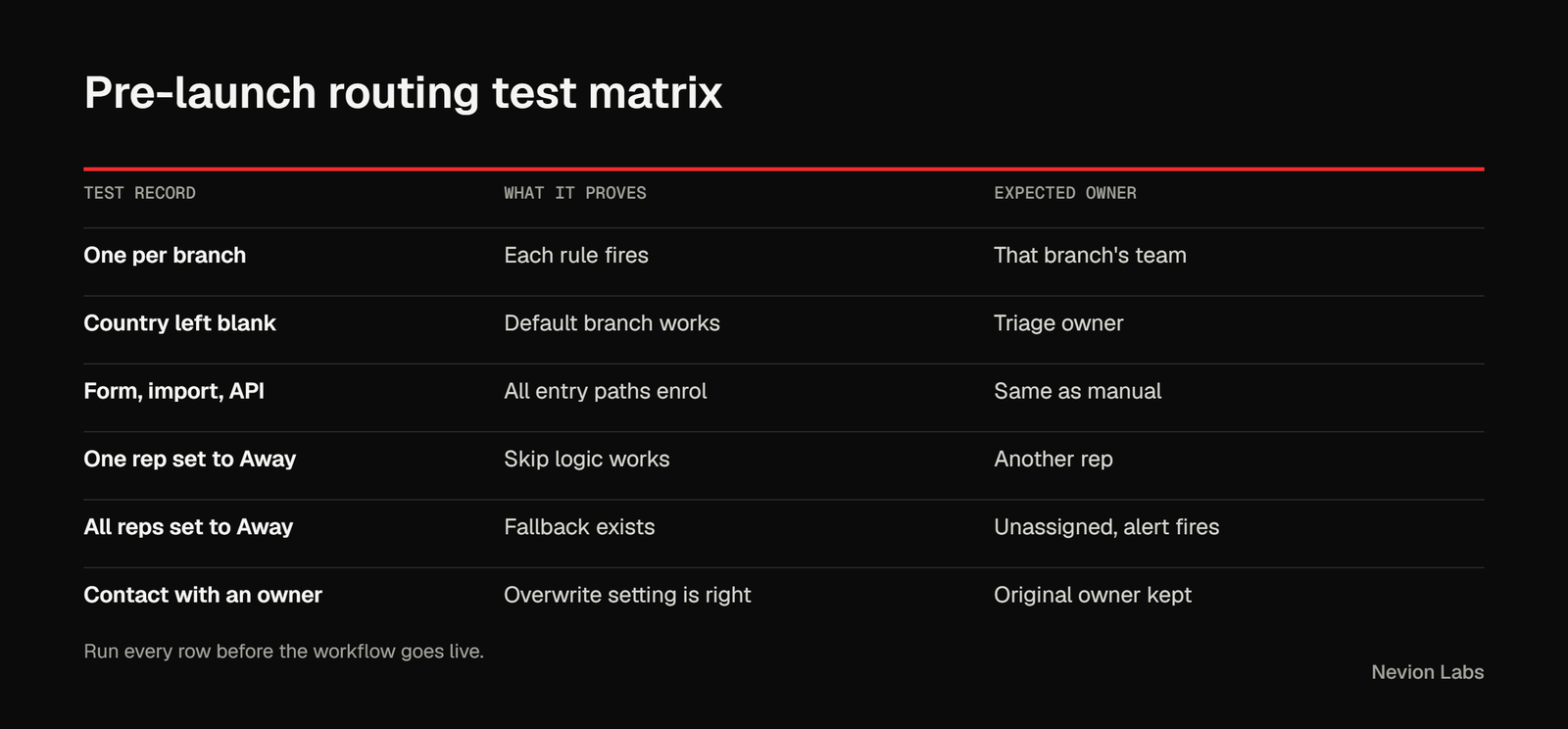
Test HubSpot lead routing like software: with known inputs and expected outputs. Create fake contacts that cover each branch, then check the owner on each. Then keep checking after launch, because teams change and rules drift.
The pre-launch test list
- One test contact for every branch, including the default branch.
- A contact with the country field blank.
- A contact created by a form, an import and an API call, since each path can behave differently.
- A pool where one rep is set to Away.
- A pool where every rep is Away.
- A contact that already has an owner, to confirm the overwrite setting does what you intended.
The weekly monitoring list
- Count of contacts with no owner older than one hour.
- Leads per rep for the last 30 days, to spot skew.
- Workflow errors and failed actions in the workflow history.
- Deactivated users still named in any branch.
Set the unassigned-contact check up as a saved view or a report, and give one named person the job of opening it every Monday. HubSpot lead routing that nobody owns decays.
The response-time KPI that tells you routing works
The metric that proves routing works is speed to lead: the time between a lead being created and the first real sales activity on it. Measure it with the contact create date and the date of the first logged call, email or meeting.
We do not quote an industry benchmark here, because the figures in circulation come from studies with different definitions and we have not traced them to a source we trust. Set your own baseline for four weeks, then set a target and review it monthly.
Track it in three views:
- By rep. Shows who is slow and who is overloaded.
- By source. Shows whether form leads and event leads are treated differently.
- By hour of day. Shows the gaps outside working hours, which is where round robin often fails.
If after-hours leads wait the longest, add a rule: leads that arrive outside business hours go to the first available rep next morning, with a task due at opening time. Simple, and it fixes a real gap.
Common mistakes to avoid with HubSpot lead routing
Most failed rollouts of HubSpot lead routing trace back to a short list of avoidable mistakes. Check your own setup against these before you switch anything on.
- Routing on unreliable fields. Country, company size and lifecycle stage only help if forms and enrichment fill them consistently. Clean the inputs first, then build the rules.
- No fallback owner. Every HubSpot lead routing design needs a default owner or queue for records that match no rule. Without one, those leads sit unassigned and nobody notices.
- Forgetting availability. Round robin only works as intended when each rep’s Away or working-hours status is kept current. Stale settings send leads to people who are on leave.
- Testing with one record. A single test lead proves almost nothing. Run several records per rule, including edge cases, before HubSpot lead routing touches live traffic.
- Stacking overlapping workflows. Two workflows that both set the owner will overwrite each other. Keep one clear owner-assignment path for each object.
- Skipping documentation. If only one person understands the rules, the next team change breaks them. Write down who gets what and why.
A simple five-question check helps. Which field drives each rule? Who is the fallback owner? How is availability maintained? Who reviews unassigned records each week? Who approves changes to HubSpot lead routing? If any answer is “nobody”, fix that gap before you scale the build.
The same discipline applies as the team grows. Review your HubSpot lead routing rules whenever you add a region, a product line or a new rep, and keep a short change log so you can trace any surprising assignment back to the rule that caused it.
Before launch, read the rules aloud to a colleague. If HubSpot lead routing cannot be explained in two minutes, simplify it. The best HubSpot lead routing is the kind a new rep can understand on day one.
Frequently asked questions
What is the purpose of routing?
The purpose of HubSpot lead routing is to put every new lead in front of the right salesperson quickly and automatically. In HubSpot it works by setting the owner property, which drives tasks, sequences and notifications. Without an owner, a lead gets no follow-up. Good routing also spreads leads fairly and makes response times measurable.
What is the best lead routing software?
There is no single best tool, because it depends on your rules and your CRM. If you already run HubSpot Sales Hub or Service Hub Professional or Enterprise, native workflows cover round robin, territory and score-based routing. Compare tools on weighted splits, per-rep caps, availability handling, audit logs and who owns the rules. Test any option with fake records first.
Does HubSpot support round robin routing?
Yes. The Rotate record to owner workflow action rotates records between specific users or a team. For leads and tickets, HubSpot also lists load balanced, round robin and random as distribution options. It needs Sales Hub or Service Hub Professional or Enterprise, checked 5 Nov 2026.
Which HubSpot plan do I need for lead routing?
You need Sales Hub or Service Hub Professional or Enterprise for the Rotate record to owner action. Lead assignment, currently in beta, needs Sales Hub Professional or Enterprise. Starter plans allow only restricted workflows, so they are not a safe base for routing rules.
How do I route leads by country or company size?
Build a workflow with if/then branches on the country or employee count property. Put one Rotate record to owner action inside each branch, pointed at that territory’s team. Order branches from most to least specific, and add a default branch that assigns a triage owner.
What happens when a rep is out of office?
If you enable “Assign to available users only”, HubSpot skips users set to Away. If every user in the pool is away, the owner is set to unassigned. Build a view or alert for unassigned leads so they do not sit unseen.
Can I route leads in HubSpot without paying for Professional?
Not with the Rotate record to owner action. Starter workflows are limited, and free CRM users can assign owners by hand. If you cannot pay for Professional, an outside tool such as n8n can set owners through the API, though that adds a tool to maintain.
Bottom line
Start with native workflows. Build one round robin pool, one territory split and a triage owner for everything else. Test each branch with fake records, then watch unassigned leads and speed to lead weekly.
Go custom only when you can name the rule HubSpot cannot express, such as capacity-based assignment. Until then, the extra tool is extra risk.
Need help with HubSpot lead routing?
We build and test routing for B2B teams on HubSpot, and we can review your current rules in a call.
- An audit of your owner fields, seats and existing workflows
- Routing built and tested branch by branch, with a monitoring view
- A custom n8n route only where native rules fall short